Proof Pocket 1.7.0: a new design, encrypted iCloud backup and an Expiry tab
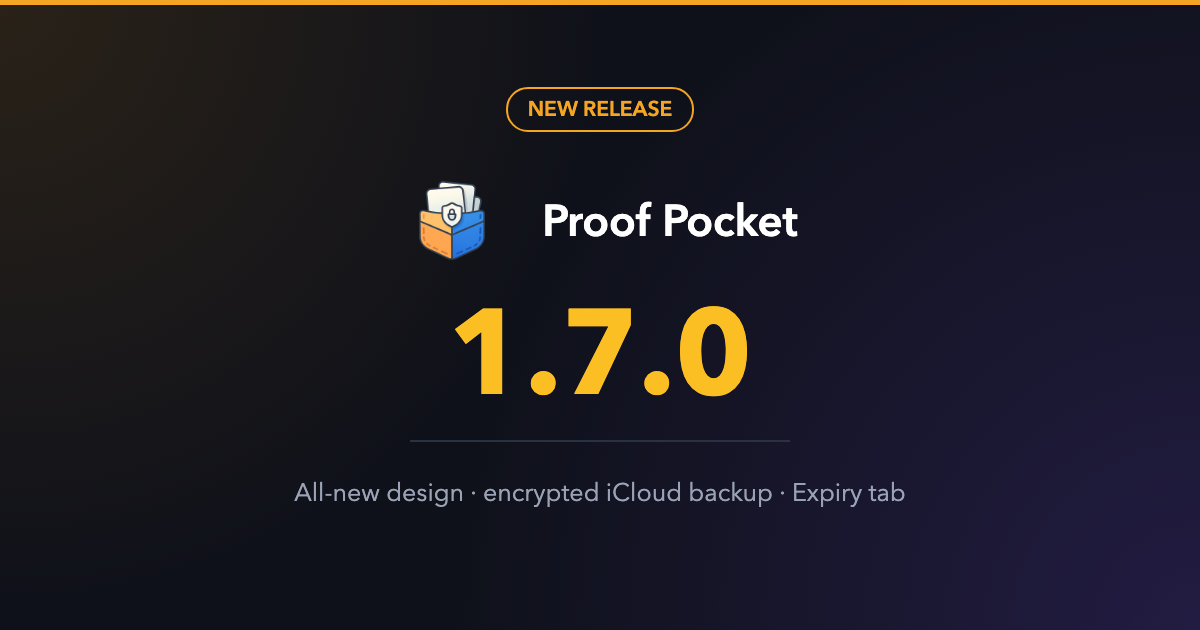
Proof Pocket 1.7.0 brings an all-new design, encrypted backups to your own iCloud Drive, an Expiry tab for upcoming renewals, Quick Scan and better search.
· 4 min read
What's new in 1.7.0
This is the biggest update since launch. Proof Pocket has a whole new look, and the app is now split into four tabs: Vault, Cases, Add and Expiry. On iPhone you can also back up your vault to your own iCloud Drive, and adding a document now takes one tap.
The short version:
- All-new design with Vault, Cases, Add and Expiry tabs, plus grid and list view.
- Encrypted iCloud backup to your own iCloud Drive, which you can restore on a new iPhone.
- Expiry tab that shows upcoming renewals at a glance.
- Quick Scan saves a document in one tap. You add the details later.
- Better search, with new filters by category, case and expiry date.
- Stronger on-device security and safer backup and restore.
- Clearer messages when a backup is interrupted or the app can't start.
- Bug fixes and stability improvements.
A new home for your documents
The Vault tab is where you land. The top of the screen shows how many documents are encrypted on the device, and any document that expires soon gets a banner there. Below that are your favourites and your most recent documents.
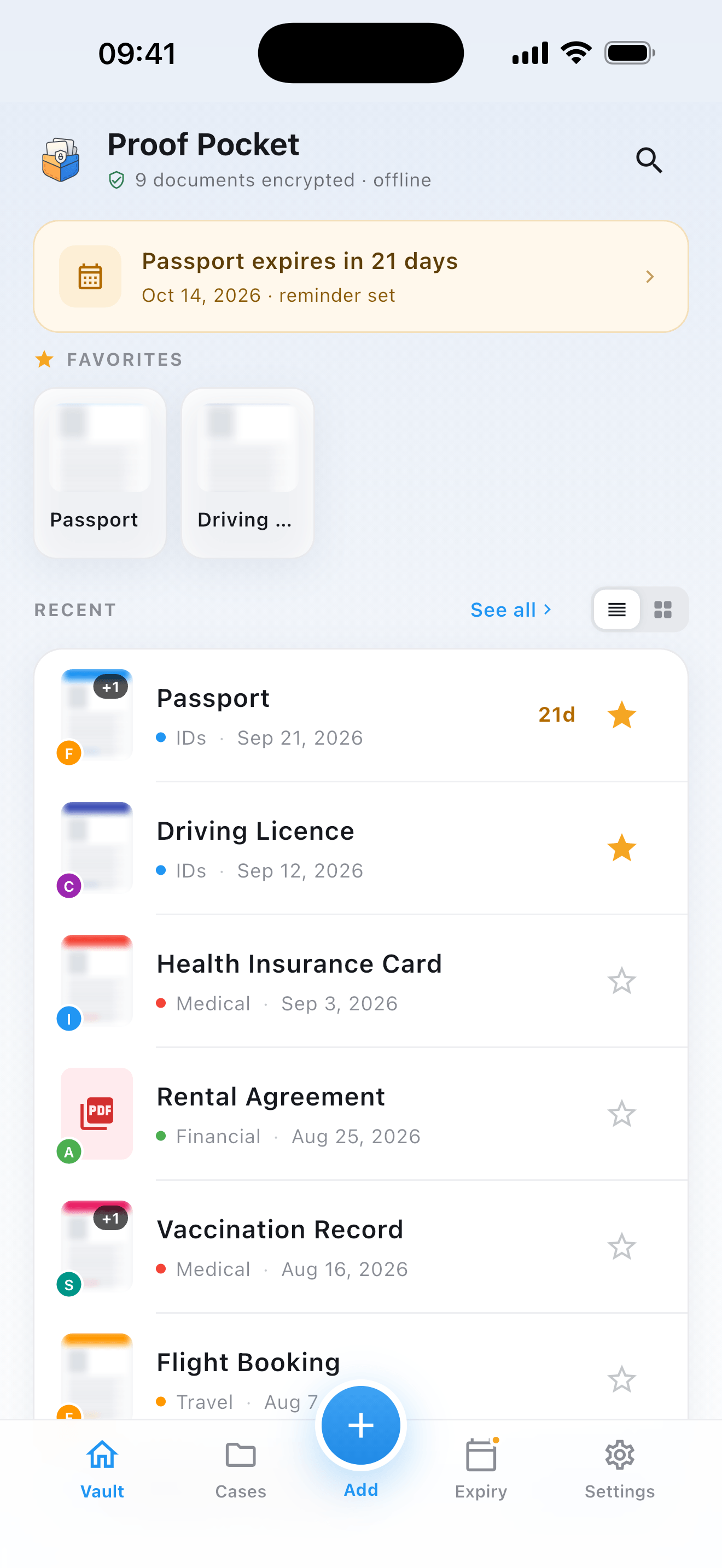
Use the toggle next to See all to switch between list and grid view. The list shows more detail at a glance, and the grid is quicker to scan when you know what a document looks like.
Quick Scan: save now, sort later
Some documents need to be saved right away, like a receipt, a form handed to you at a counter, or a ticket, and you don't have time to type anything. The Add button in the middle of the tab bar now gives you two options.
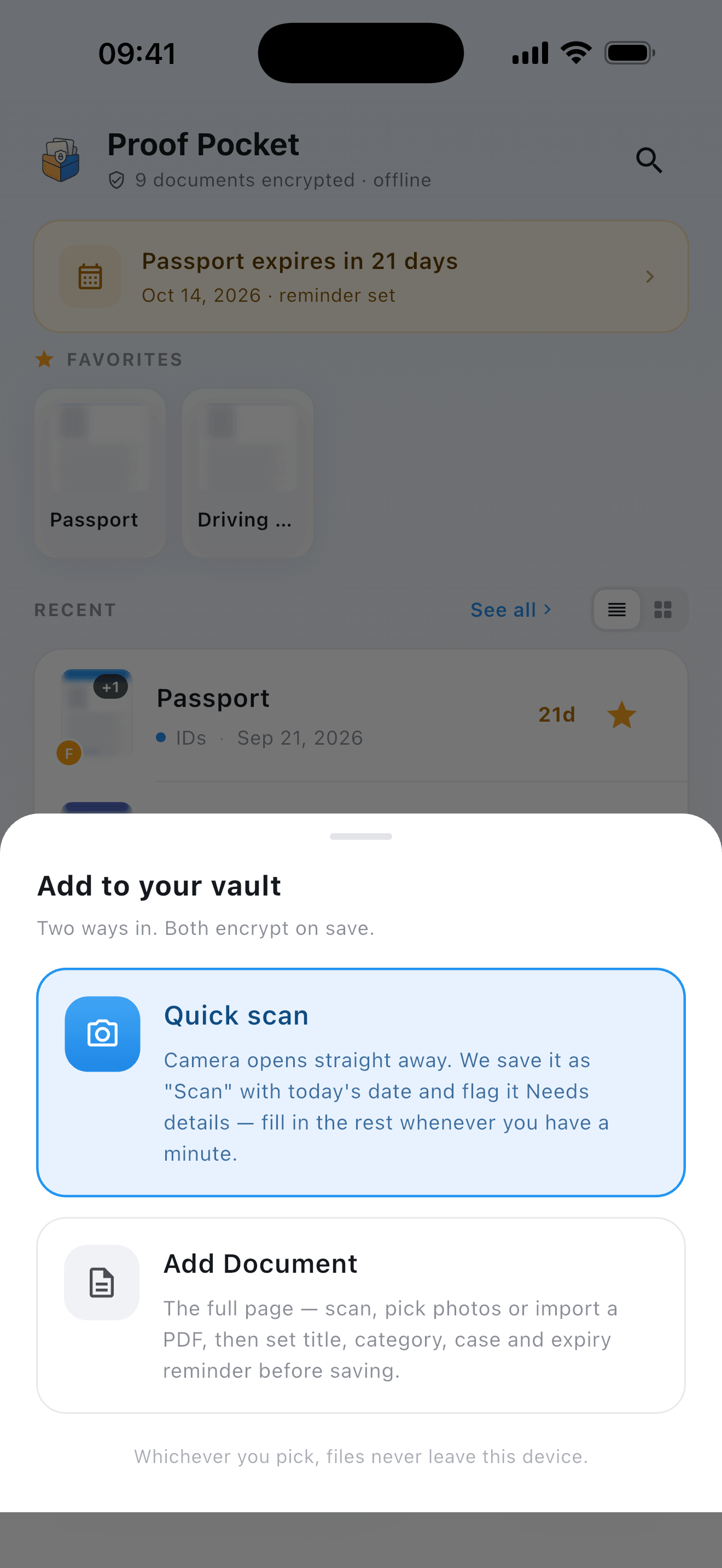
Quick scan opens the camera straight away. The document is saved as "Scan" with today's date and marked Needs details, so you can find it later and give it a proper title, category and expiry date. Add Document is the full form for when you do have a minute. Both options encrypt the file when it's saved, and neither uploads it anywhere.
The Expiry tab
In earlier versions, expiry dates were buried in each document. The new Expiry tab lists everything that is about to expire, grouped by when it happens: the next document up, anything within 30 days, and anything in the next six months.
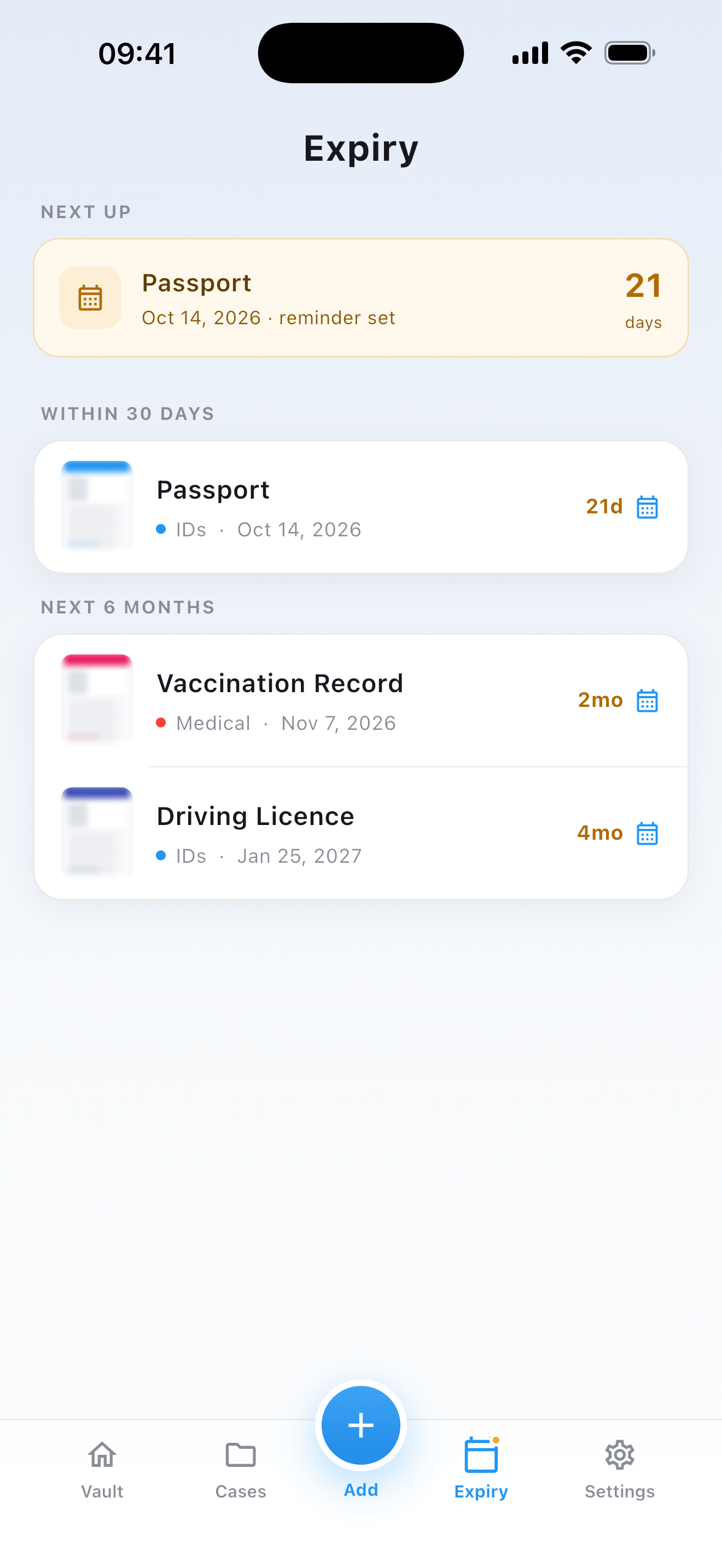
You no longer have to remember when your passport runs out. You can see it along with everything else that needs renewing.
Cases get their own tab
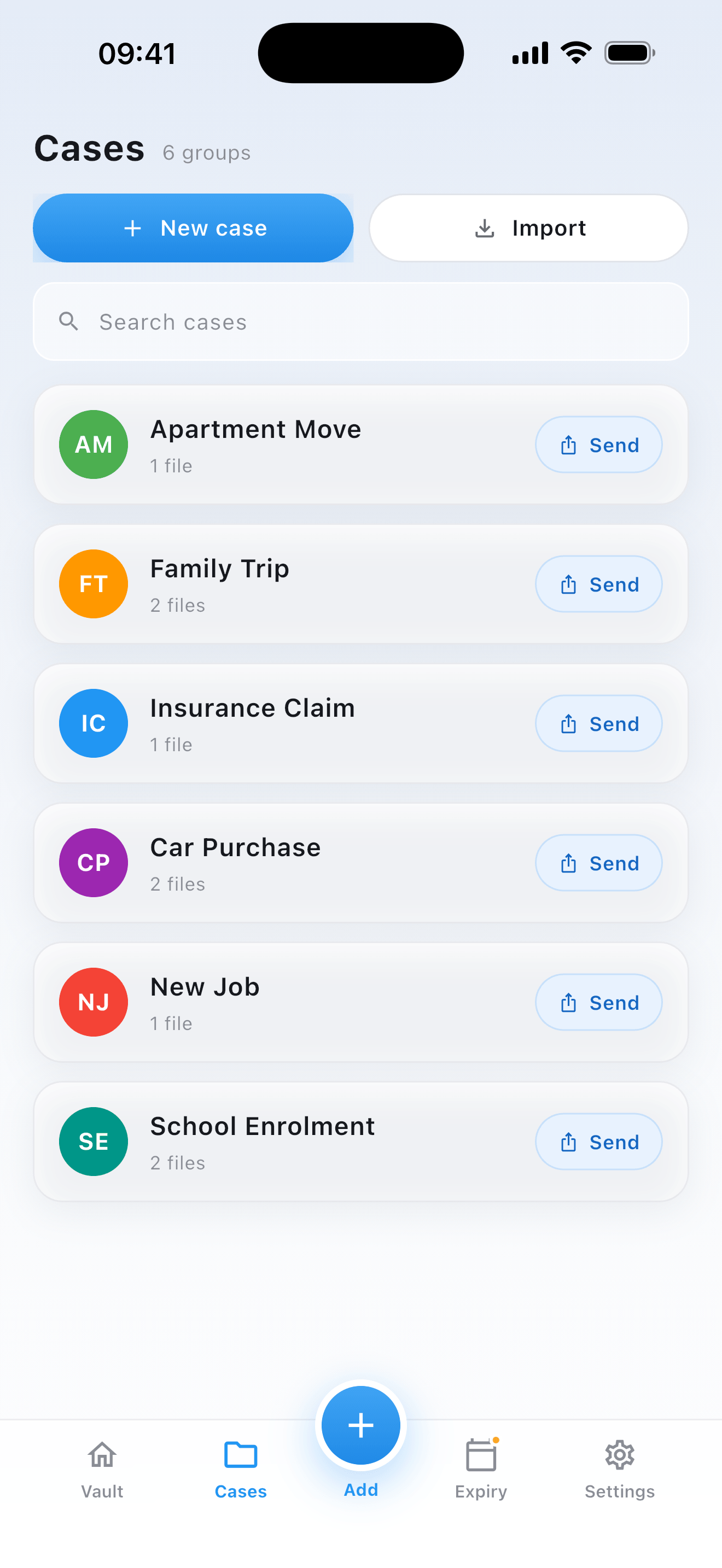
Cases arrived in 1.6.0 and now have their own tab. You can create a new case, import one someone sent you, search your cases, and send any of them as an encrypted file.
Better search and filters
Search now finds documents as you type and shows which case each result belongs to. The new Filter button narrows results by category, case or expiry date.
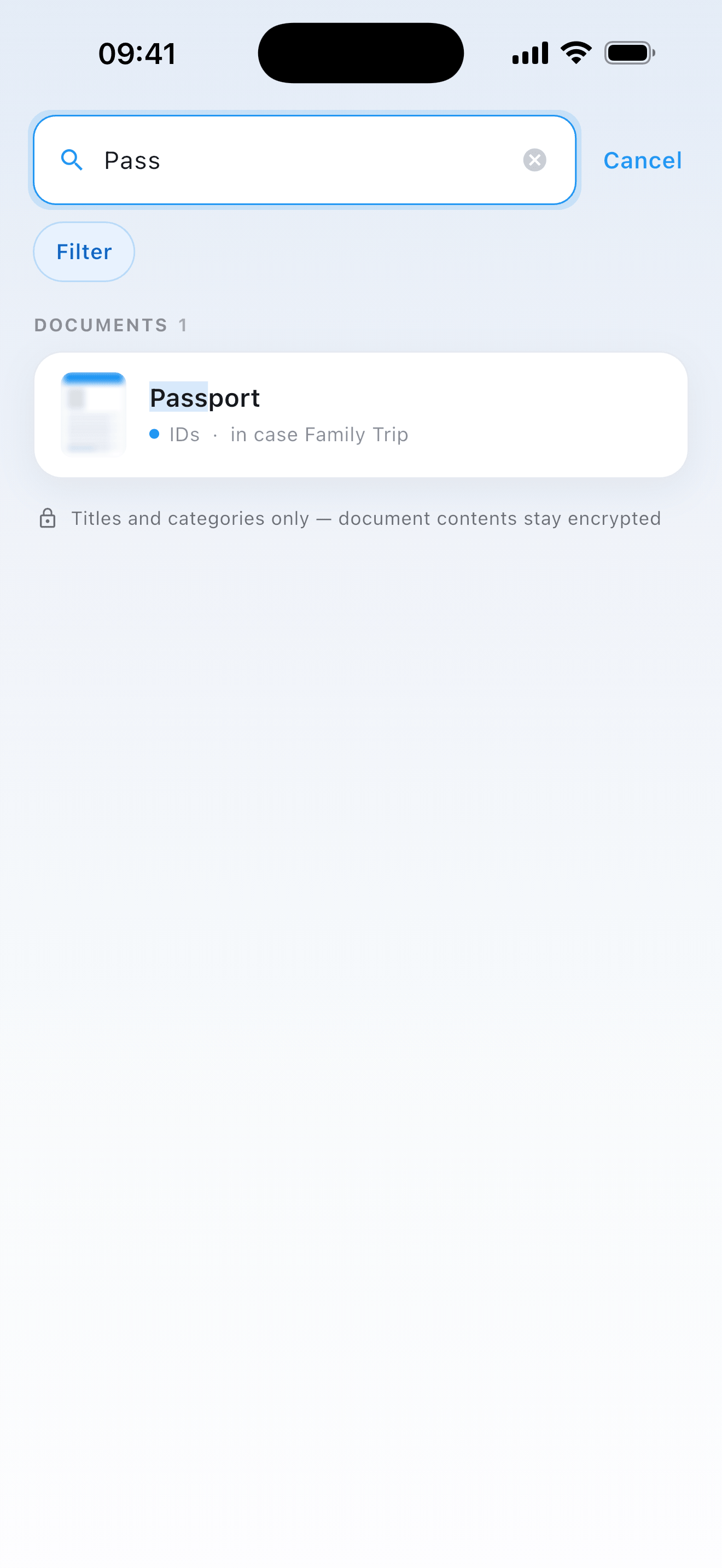
Search only looks at titles and categories. The contents of your documents stay encrypted.
Encrypted iCloud backup
Until now, moving to a new phone meant exporting your account by hand. In 1.7.0 you can back up your vault to your own iCloud Drive and restore it on a new iPhone.
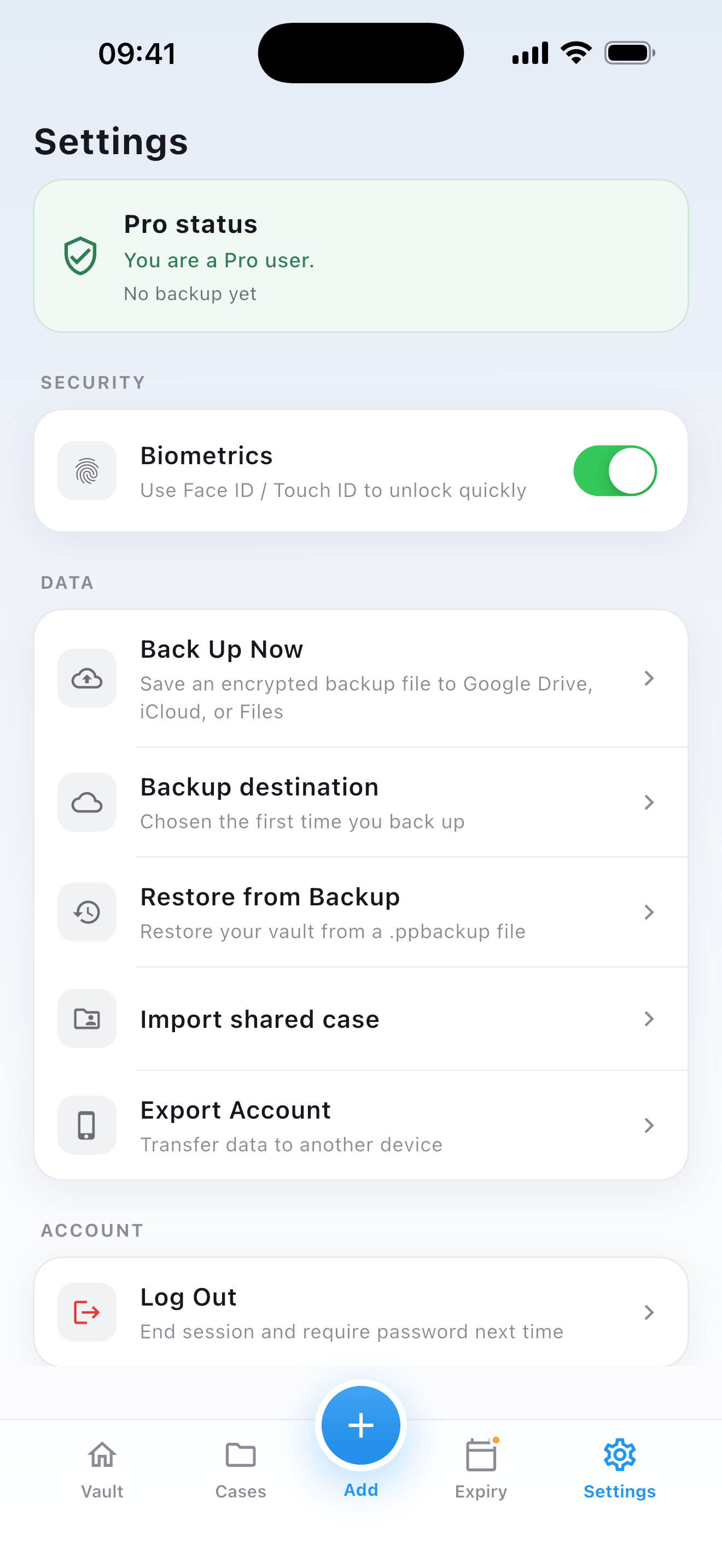
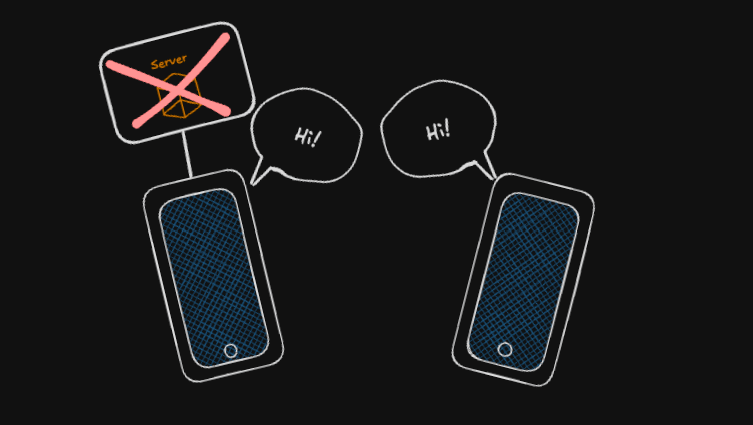
The backup is encrypted before it leaves your phone, and your master password is never sent anywhere, including to iCloud. Apple stores a file it cannot read, and nothing ever reaches a server I run. To restore on a new iPhone, you choose the backup and unlock it with your master password.
Your master password never leaves the device. Without it, the backup file is just encrypted data, both for Apple and for anyone else.
Under the hood
Behind the scenes, 1.7.0 strengthens on-device security and makes backup and restore safer. If a backup is interrupted, or the app can't start for some reason, you now get a clear message explaining what happened, not a silent failure. The update also includes the usual round of bug fixes and stability improvements.
That's it
Proof Pocket 1.7.0 is out now. If you have feedback on the new design, come and say hi on Discord. Thanks for reading, and see you in the next post :)